The picture-day flyer is on the counter, the Skylight is on the wall, and the feature that would read the flyer for you, Skylight Magic Import, comes with Calendar Plus at $79 a year (Skylight).
Magic Import and a phone app like KidsFoldr start the same way, with your phone's camera. Magic Import puts the events on your Skylight. KidsFoldr puts them on the calendar you already use and files the paper.
On a flyer with one date, both do the job. The difference shows on the papers with dozens of dates.
- Magic Import is a phone scan too. On the Skylight screen, the Photo button shows a QR code that opens Sidekick in the Skylight phone app (Skylight). So the real choice is which phone app reads the paper, what it costs and what comes out the other end.
- Magic Import comes with Calendar Plus. Skylight's help also says you need an activated Calendar with its time zone set before it works (Skylight). The events go on your Skylight.
- KidsFoldr puts the dates on the calendar you already use, and files the paper. Snap the flyer, and its date goes to the Google, iCloud or Outlook calendar you choose, linked back to the paper, with no typing, and the flyer is filed under the right kid. Skylight syncs those calendars for free, so the dates show on the screen too (Skylight). For everything else Calendar Plus adds, see our Skylight Calendar review.
What happens to a paper with more than one date on it?
The school-year calendar and the coach's season schedule are where the two routes part, and where Skylight's help says the least.
The picture-day flyer: both handle it
Either route gets one date off a flyer. The differences are the steps, who the event belongs to and where the flyer goes afterward.
In the Skylight app
Open Sidekick, tap Import Events and tap at least one Profile; the app won't go on until you do. Then take a photo of the flyer or choose one from your camera roll. Sidekick shows the event as a draft you can edit, and Add to Calendar puts it on (Skylight).
You can also skip the photo and describe the event into the microphone, which helps when the flyer has already gone back in the backpack (Skylight).
Skylight's own help says an import "may not always get everything right," and the flyer needs a visible month and date (Skylight).
In KidsFoldr
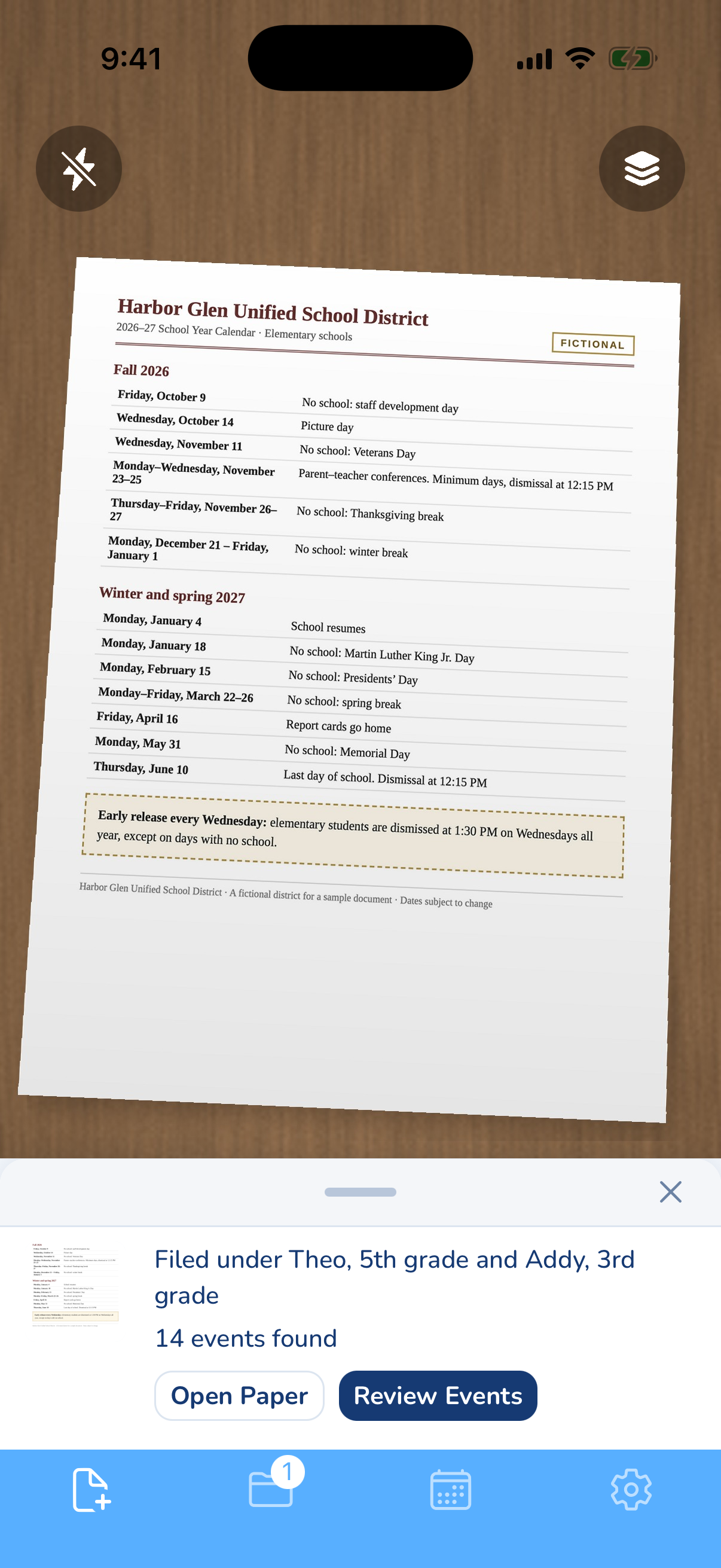
Snap the flyer, and picture day is on your calendar with no typing, tagged to Addy. The receipt says where the flyer went, "Filed under Addy, 3rd grade," and that its event was found.
A flyer's only event is always kept. It waits in Events for one tap on Import, or goes straight on if you turn on Automatic Import. For the fall festival, Add Addresses fills in the venue's street address.
If all you need is an app that turns a flyer into calendar events, either one does it. To see what a flyer holds before you decide, try our free flyer to calendar tool.
The school-year calendar: where they differ most
Skylight says Sidekick turns paper schedules and PDFs into events, but it doesn't say what happens to a page with dozens of dates on it (Skylight).
In the Skylight app
One thing to know before you try it: Skylight tags the whole import to the Profiles you pick first, or the ones you name in the email's subject line (Skylight). Pick both kids, and every date from the page goes on both, including any that apply to only one kid's school. To move one to the right kid, you edit that event (Skylight).
In the app, Sidekick's steps take one photo at a time; for a PDF, Skylight's steps say to email it to your Skylight (Skylight). A two-sided calendar is two photos, or one email.
In KidsFoldr
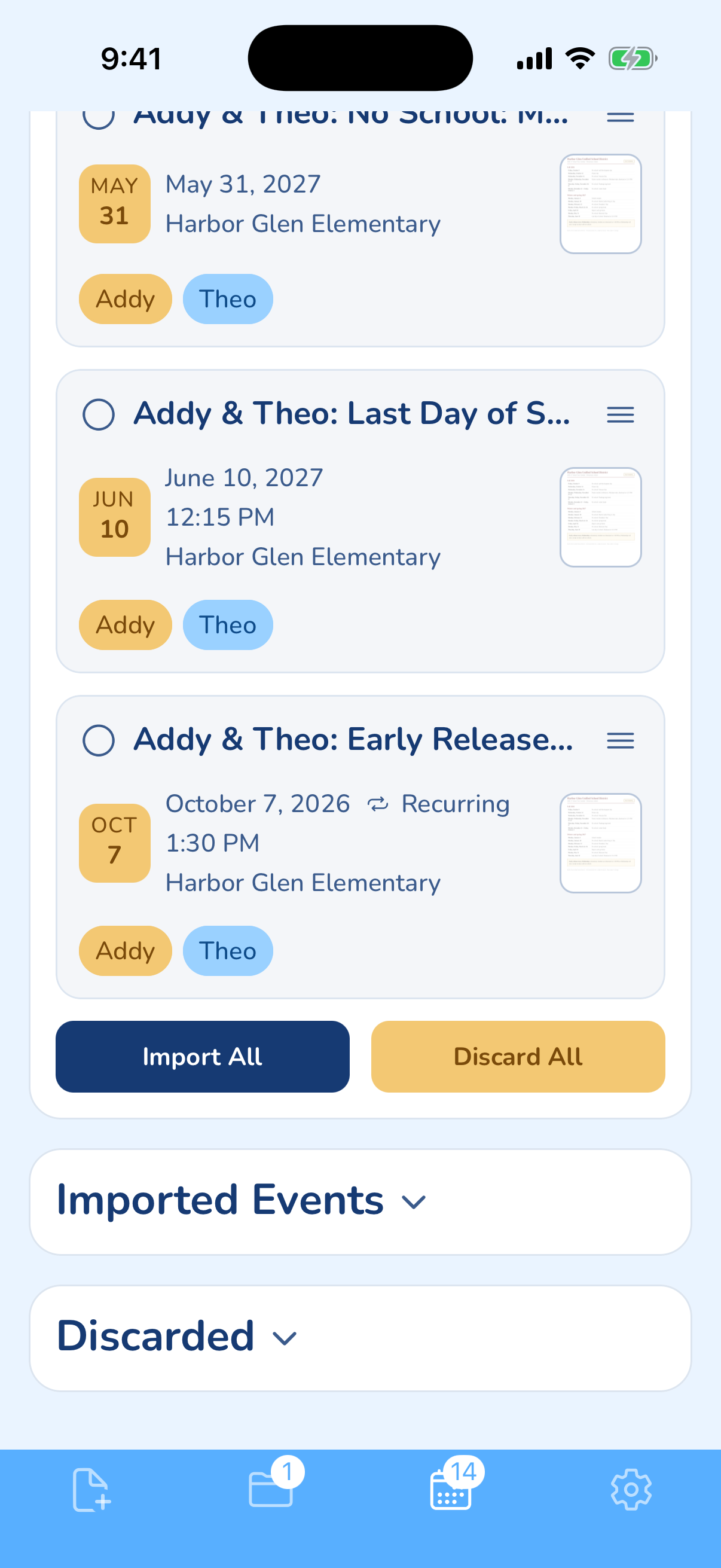
The year goes on your calendar with no typing, sorted by kid. Scan the school calendar into your phone, both sides as one paper, and KidsFoldr reads every date on the page and tags each one to its kid, in that kid's color.
A weekly early release comes in as one repeating event, not a column of Wednesdays. The dates wait in Events for you to look over, and Import All puts them on your calendar in one tap. Duplicate Protection asks before adding a date that's already there.
If the district posts the calendar as a PDF, open it from Files or share it to KidsFoldr. Our free school calendar PDF converter shows what a PDF holds first.
The coach's season schedule: only your kid's games
A league schedule lists every team, and you want only your kid's games plus one repeating practice. Skylight doesn't say whether an import can keep one team's games or turn the practice into a repeat (Skylight).
Its event editor does have Repeats and "Repeats until," so you can set the practice to repeat yourself once it's on the calendar (Skylight). And Skylight's own landing page names sports schedules among what you can forward (Skylight).
In KidsFoldr, the season comes in as your kid's games and one practice. Put their school and level, say Lincoln JV volleyball, in their Family Profile, and Smart Extract keeps only their games and sets the other teams' aside. "Practice Tuesdays and Thursdays" comes in as one repeating event with its days and end date.
Anything set aside waits in Discarded, and you can restore it. Our free sports schedule extractor shows a sample with Freshman, JV and Varsity games, and the Varsity-only set Smart Extract keeps.
Forwarding the school email
Both take a forwarded school email, PDF attachments included. On Skylight, the events are added first and you check them after; in KidsFoldr, the email's papers are filed and its events wait for you in Events (unless you've turned on Automatic Import).
On Skylight, forward the email to your Skylight's address, which ends in @ourskylight.com, with the Profile names in the subject line, separated by commas. Those Profiles go on every event in that email (Skylight).
A confirmation email then lists what was added, with a trash icon beside each item and an Undo Import button at the bottom. Past imports sit under Sidekick, Manage Imports (Skylight).
With KidsFoldr, the school email's papers are filed under the right kid and read for dates, with no subject line to type. Turn on Email Papers and Events, then forward the email to papers@kidsfoldr.app from the email on your KidsFoldr account. The body and every attachment become papers, and a reply titled "Your papers are ready" comes back.
Where the flyer goes afterward
Skylight doesn't say whether an imported event keeps the flyer, and no Skylight page says an event can hold an image (Skylight). So with Magic Import, keep the flyer until picture day is over.
With KidsFoldr, the flyer can go. Every event links back to its paper in the event's notes on your phone's calendar, one tap away, so scan the flyer for peace of mind and toss it with no guilt. No stack on the counter waiting for picture day.
It's already filed under Addy, 3rd grade, by type, with nobody sorting. Any word on it finds it again later.
The full comparison
Both routes read a paper you photograph on your phone. The rows below are the jobs where they differ, paper by paper.
Scroll both ways on a phone. The job name stays put.
| Job | Skylight Magic Import | KidsFoldr |
|---|---|---|
| Where you take the photo | In Sidekick, in the Skylight phone app; the screen's Photo button shows a QR code that opens it | In KidsFoldr on your phone: Camera, Scan, Photos, Files or the share sheet |
| The picture-day flyer | Pick Profiles, take or choose one photo, check the draft, Add to Calendar | Snap it; filed under the kid, its date tagged to that kid |
| A page full of dates (school-year calendar) | Not documented by Skylight | Reads every date on the page and tags each to its kid; Import All brings them in with one tap |
| Two kids on one page | The whole import goes to the Profiles you pick; edit an event to move it | Each event tagged to its kid, in that kid's color |
| A weekly practice | Not documented for imports; you can set Repeats on the event | One repeating event with its days and end date |
| Only your kid's games | Not documented by Skylight | Smart Extract keeps only your kid's games, by the school and level in their Family Profile; the rest wait in Discarded |
| A PDF | Email it to your Skylight's address | Files, the share sheet or a forwarded email |
| Forwarding the school email | To your Skylight's @ourskylight.com address, Profiles in the subject line; added, then a confirmation email with Undo Import | To papers@kidsfoldr.app from your account's email; body and attachments filed and read for dates; a reply, "Your papers are ready" |
| Where the events land | Your Skylight. Whether imports also go to Google or iCloud: not documented by Skylight | The Google, iCloud or Outlook calendar you choose, or several; a Skylight that syncs it shows them |
| The flyer afterward | Not documented by Skylight | Filed by kid, grade and type; every event links back to it in the calendar entry's notes |
| Cost | Calendar Plus, $79 a year ($7.99 a month in the iPhone app), plus a Skylight Calendar, $169.99 to $599.99 | $3 a month. 14-day free trial, no card. |
Skylight cells come from Skylight's own help center and product pages (Skylight).
Already own a Skylight?
If paper is the only reason you'd buy Calendar Plus, you don't need it to get school dates on the screen. Skylight syncs Google and iCloud both ways and Outlook one way for free, so dates a phone app puts on those calendars show up on the Skylight (Skylight).
KidsFoldr puts events on the Google, iCloud or Outlook calendar you choose, or several, with a default calendar for each person. Point Addy's events at the family Google calendar your Skylight already shows, and her dates reach the wall with no typing.
Calendar Plus buys more than Magic Import. It adds meal planning, the photo screensaver and Rewards, imports lists and recipes through the same Sidekick, takes voice imports, and covers every Skylight Calendar in your home on one subscription (Skylight). If your family will use those, Calendar Plus covers them too.
The screen itself is the Skylight's strength: the dates sit where the whole family reads them, whichever app put them there.
How we compared
We ran hands-on tests and checked each app's documented features. Every Skylight fact comes from Skylight's own help center and product pages, listed in Sources, and the date we checked them is at the top of the page.
Questions parents ask
Is Skylight Plus worth it if I mostly want Magic Import?
The plan Magic Import needs is Calendar Plus, $79 a year; Frame Plus, at $39 a year, is the photo-frame plan (Skylight). If school papers are the main reason, the free calendar sync gets dates from a phone app onto the screen without it. Calendar Plus earns its price if your family will also use meal planning, the photo screensaver or Rewards.
Does Magic Import need a Skylight screen?
Skylight's help says you need an activated Calendar with its time zone set, and its email route sends to your Skylight device's address (Skylight). Skylight doesn't say whether an account with no screen can use Magic Import.
Can I upload a PDF to Magic Import in the app?
Skylight's in-app steps show one photo at a time. For a PDF, email it to your Skylight's address; one email can carry several PDF attachments (Skylight).
Who can email events to my calendar?
Skylight doesn't say whether Magic Import accepts email from any sender, so give your Skylight's address only to people you'd hand the calendar to. KidsFoldr takes forwards only from the email on your account.
What if we don't have a Skylight yet?
Buy one for the screen: the family's week on the wall is what it does best. For the dates alone, a calendar on your phone does the job. Our guide to the best family calendar app 2026 compares the options, and our Cozi review covers a family calendar with no screen to buy.
Sources
All checked November 2, 2026.
Skylight help center:
- Import Calendar Events
- Email Events, Recipes, Menus, and Photos With Sidekick
- [Feature] Edit Drafts of Magic Imports
- How To Use Magic Import
- The Calendar Tab
- Calendar (mobile app)
- About Skylight Plus
- Calendar Plus
- What does Skylight Calendar sync with?
- Does Skylight Calendar require a subscription?
- Calendar email address
Skylight product pages: