Turn a handwritten list into a digital list
Photograph the handwritten list on the fridge or the notepad, or drop in a PDF. Every item comes back as a checklist you can edit, copy and share.
- No signup, no email, no popup. It works on the first visit.
- Things to buy are kept apart from things to do.
- Copy it one item per line for any list app, or send it as a link.
Limited by connection, not by login. Your file is read, then discarded. We keep nothing.
Items found
This list had more items than the free tool reads at once. The ones below are complete. The KidsFoldr app reads the rest.
- Todoist: paste into the task name field. It asks "Add X tasks?" and makes one task per line.
- Reminders, Google Tasks, Microsoft To Do, Google Keep or Apple Notes: paste into a new list or note.
- Copy as checklist puts "- [ ]" before each item, a plain-text checklist.
Uncheck anything you don't want, and tap any item to fix its wording. Every copy, download and link uses the list as you left it.
Getting a paper list into a phone list app
The family list lives on paper for a reason. A pen on the fridge is faster than any app. The trouble starts at the store, when the list is still on the fridge.
There are three ways to move a paper list onto a phone. You can type it. You can copy the words off a photo. Or you can have an app read the photo and hand back the items.
Copy the text off a photo
On an iPhone, Live Text copies words out of a picture. Open the photo in Photos, touch and hold a word, then tap Select All and Copy (Apple). Paste it into any app, then tidy it into a list yourself.
Have an app read the photo
Todoist can read a photo of a list itself. Its Task Capture Assist, in beta, takes a JPEG, PNG or WebP image and shows a preview of the tasks before it adds any. Todoist's own example is a grocery list scribbled on a napkin, and it says clear handwriting works best (Todoist).
This tool reads the photo for you, with no account. It turns the photo into a checklist, splits things to buy from things to do, and hands you plain text that pastes into any list app.
What each list app does with a pasted list
Pasting is the easy part. What the app does with several lines of text is the part that matters, and the apps do not all document it.
Todoist
Paste the list into the task name field, and Todoist asks "Add X tasks?" On the web and desktop you can choose Cancel, Add 1 task, or Add X tasks. On iPhone and Android you choose Add X tasks or Paste, which keeps it as one task (Todoist).
To avoid stray formatting, paste as plain text: Cmd+Shift+V on a Mac, Ctrl+Shift+V on Windows, or press and hold, then Paste as plain text, on Android (Todoist). It is the only app here whose maker documents one task per pasted line.
Apple Reminders
Apple's guides describe adding one reminder at a time. On a Mac, pressing Return after a reminder starts the next one in the same list (Apple).
With Apple Intelligence, Reminders can suggest items from text in another app. Select the text, tap Share, then tap Reminders. Pick a list, then tap each suggestion or Include All (Apple).
It needs iOS 27 on an iPhone 15 Pro, iPhone 15 Pro Max or an iPhone 16 or later. It is not in every language or region, and usage limits may apply.
A Groceries list type sorts items into categories such as Produce. To switch an existing list, tap Show List Info, then List Type, then Groceries (Apple).
Reminders, one per line, with a shortcut
Apple's Shortcuts app has the actions to do it: Split Text breaks the text into lines, Repeat with Each walks through them, and Add New Reminder makes a reminder for each. Matthew Cassinelli's "Bulk-add reminders" shortcut is built exactly that way.
On its first run, a shortcut asks for access to Reminders. Choose Always Allow, and it stops asking (Apple).
Google Tasks
Google's help covers one task at a time: in the Tasks app, tap Add task and enter a title (Google). A list can hold up to 20,000 open tasks. Copy the list here, and paste it into a new list.
Microsoft To Do
Microsoft's support pages describe adding tasks one at a time, in My Day or in a list (Microsoft). Paste the copied list into a new list.
Google Keep and Apple Notes
Both make checklists. In Keep, any note can become a list: on a computer, click More, then Show checkboxes; on Android, tap Add, then Checkboxes (Google).
In Notes, tap the Checklist button, and each Return adds an item. Tap the circle to mark one done, and use Sort Checked Items to move finished items to the bottom (Apple).
Try it on a real list
Here is the kind of paper this tool is for. A Saturday list on a lined notepad, in blue ballpoint, written in two columns: one for the errands, one for the store.
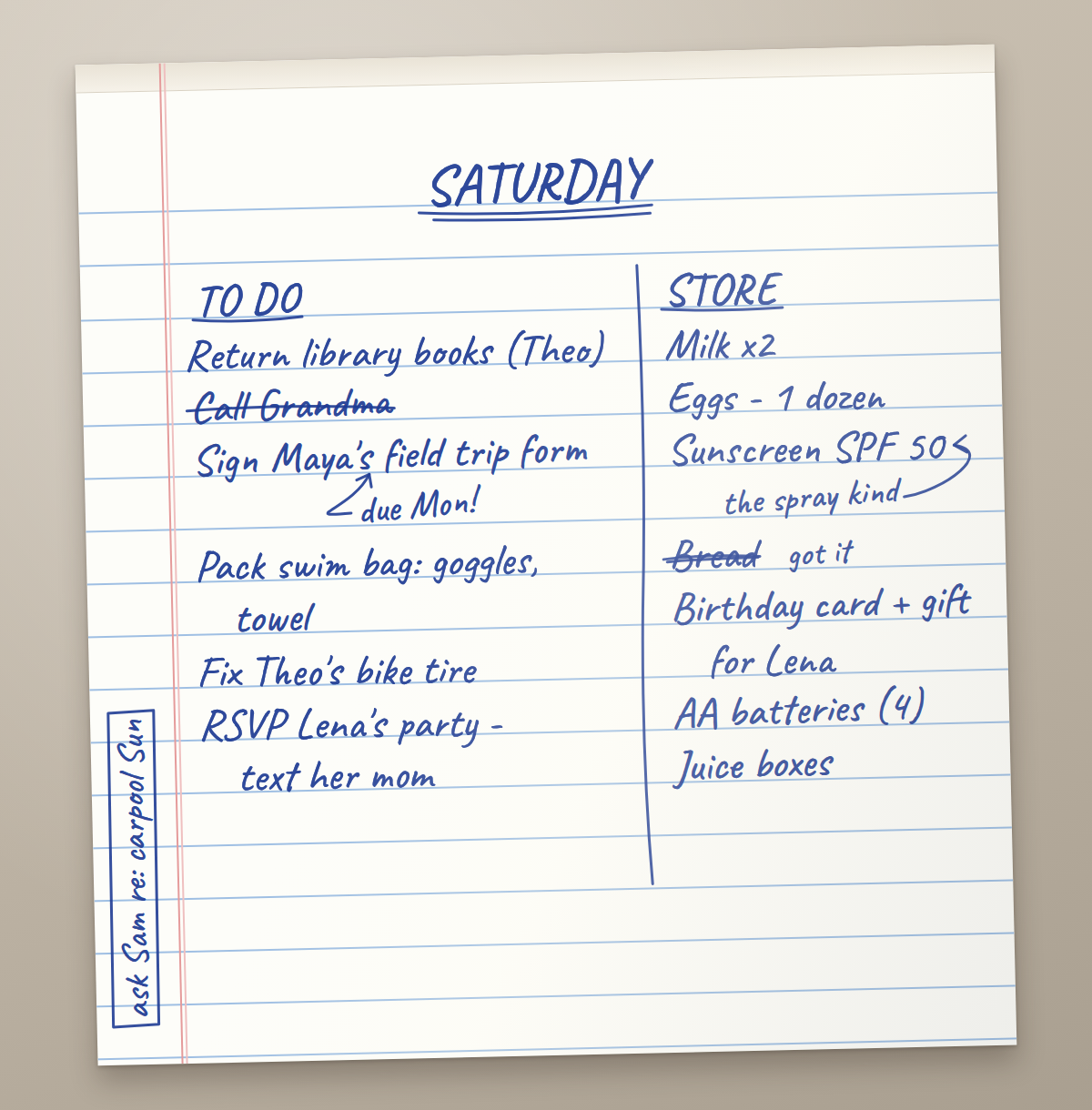
It reads down each column, not across. "Call Grandma" is crossed out, so it is done. "Bread" is crossed out with "got it" beside it.
Two notes hang off items by arrows. "Due Mon!" belongs to the field trip form, and "the spray kind" belongs to the sunscreen.
Down the left margin, written sideways, is one more task: ask Sam about the Sunday carpool. It sits in neither column.
What the tool found
The tool correctly left out the two crossed-out lines and the SATURDAY heading.
Under Buy it put the store column: milk, eggs, sunscreen, the birthday card and gift for Lena, AA batteries and juice boxes, each with its quantity or detail.
Under To do it put the errands: the library books, Maya's field trip form, the swim bag, Theo's bike tire, the RSVP for Lena's party and the carpool question for Sam.
The margin notes stayed with their items, so the form keeps its Monday deadline and the sunscreen stays the spray kind.
About the handwritten list tool
A list on paper is easy to write and hard to carry. It sits on the fridge, in a pocket or in the car, and the phone in your hand has none of it.
This tool reads the whole page the way you would, then writes each item down once. A to-do becomes a task. A thing to buy lands under Buy. You check what to keep, fix any wording, and take the list wherever it needs to go.
What it reads
- Photos from a phone camera of handwritten or printed lists.
- PDFs, typed or scanned, up to 10 pages.
- Grocery lists, to-do lists, chore lists, school supply lists, and packing lists for camp or a trip.
- A page with two lists, side by side or one after the other. Every list is kept.
What it keeps, and what it leaves out
It keeps each item's quantity and detail, like "2 gallons of milk". It is built to leave out lines that are crossed out, plus headings, names and dates.
Each item is also marked as something you can buy, or something to do. That is how the checklist splits into its two groups.
School supply lists and camp packing lists
A school supply list is long and exact: "24 #2 pencils", "1 box of tissues, unscented". The tool keeps each count and detail, so nothing gets lost between the paper and the store.
Some schools print one sheet with a list for every grade. The tool is built to keep every list and start each item with its list's name, so you can uncheck the grades that are not your kid's.
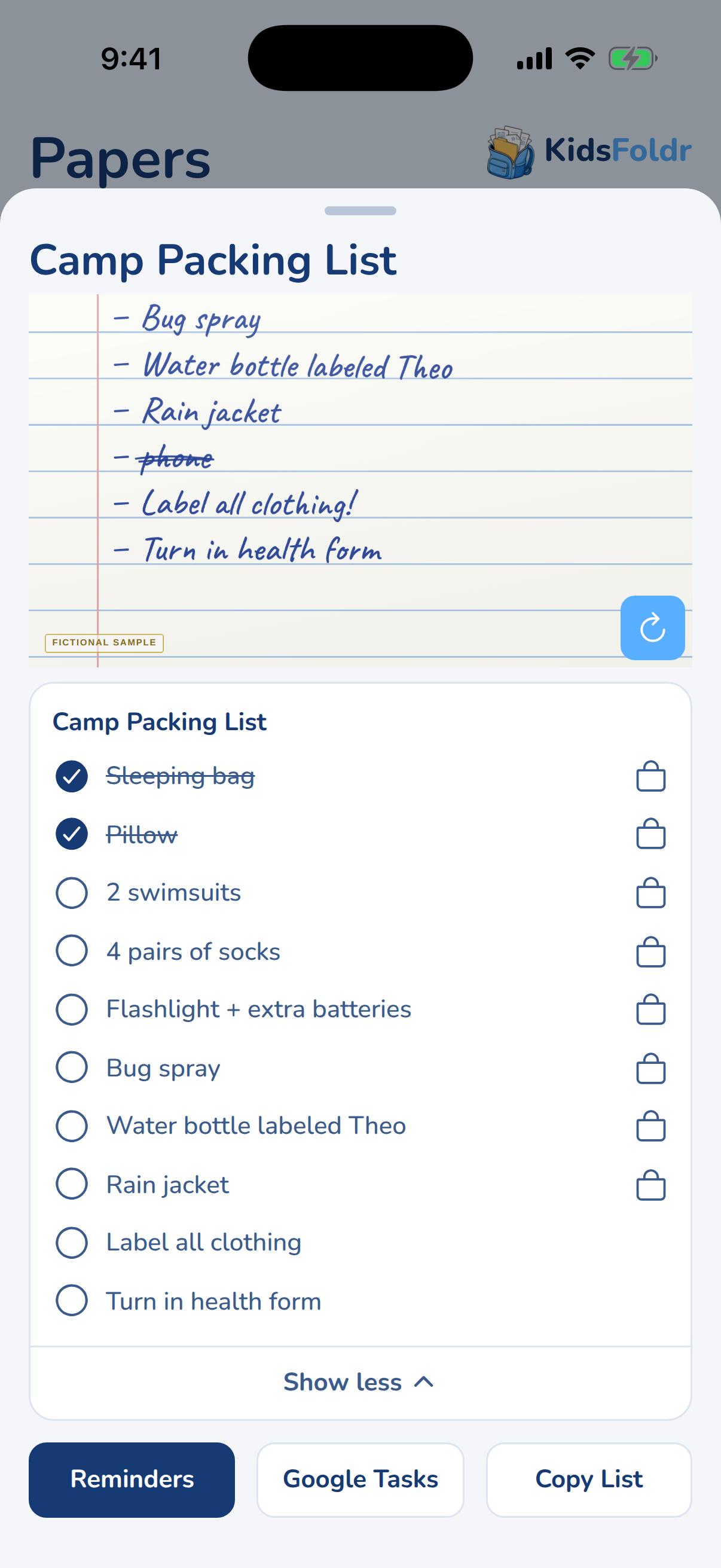
A camp packing list mixes things to buy with things to do: bug spray and a flashlight, but also "label all clothing". Those land in Buy and To do, so the shopping and the chores come apart on their own.
Shopping, sorted
Every item you can buy goes under Buy, so the store run is one list. Uncheck the To do items, copy, and you have a shopping list to paste anywhere.
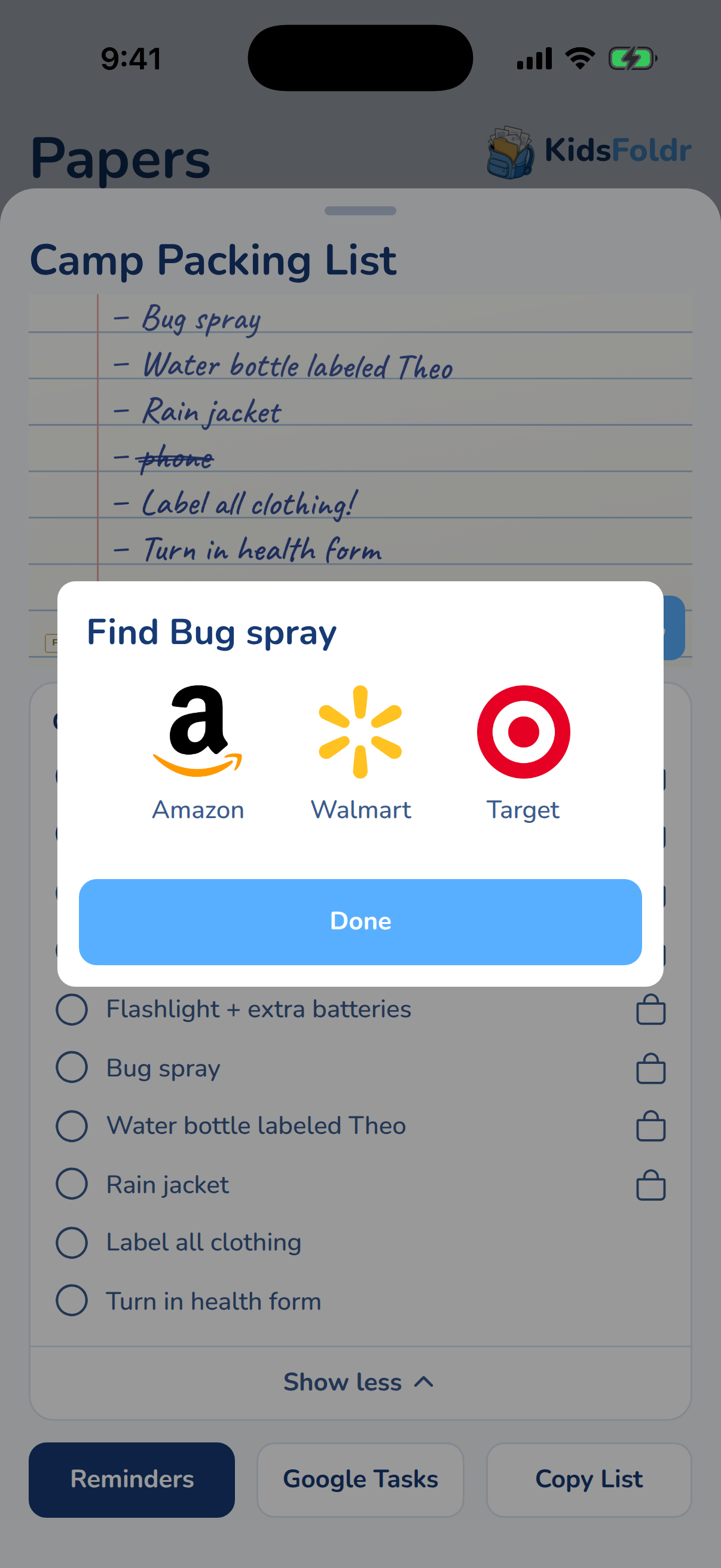
In the KidsFoldr app, it goes one step further. Each item you can buy gets a Find button. Tap it, pick Amazon, Walmart or Target, and that item opens in the store's app or in your browser.
So a supply list becomes a cart one item at a time, with no typing. Tasks get no Find button, because a form to sign is not for sale.
Getting it into your app
- Copy list puts one item per line on the clipboard.
- Copy as checklist puts "- [ ]" before each line.
- Download .txt saves a text file with the list name and both groups.
- Share opens your phone's share sheet, where your browser offers one.
- Copy shareable link makes a link to the same checklist.
Every list, a checklist on your phone, with no typing
Snap the list in KidsFoldr, and it is filed under the right kid or the family, by type, and read as a list, with no typing. So the paper can go. A supply list, a to-do list, a shopping list or a packing list shows its items under the paper, with a round check beside each one.
One tap sends it to Apple Reminders on iPhone or to Google Tasks on iPhone and Android, as a list named after the paper. Copy List puts it on the clipboard for any other app. Anything you can buy gets a Find button that opens it at Amazon, Walmart or Target.
Scan it for peace of mind, then toss it with no guilt.
What happens to your file
Your file goes to our server, which asks Claude, an AI model made by Anthropic, to read it. The list comes back to your browser. We do not save the file or the list.
The only thing we keep is a count of how many papers came from your connection, stored as a scrambled code. That keeps the tool free. The count is deleted after two days.
Questions about this tool
Do I need an account?
No. Choose a photo or PDF, check the list, and copy or download it. There is no signup, no email and no popup.
Which list apps turn a pasted list into separate items?
Todoist documents it. Paste the list into the task name field and Todoist asks "Add X tasks?", one task per line. For other apps, copy the list and paste it into a new list or note.
How do I get the list into Apple Reminders?
Copy it and paste it into a list in Reminders. On an iPhone with Apple Intelligence, Apple also lets you select text in another app, tap Share, then Reminders, and pick from the suggested reminders. In the KidsFoldr app, Add to Reminders sends the whole list in one tap.
Why is an item missing?
The tool is built to leave out lines that are crossed out, plus headings, names and dates. If it skipped something you need, add it after you paste, or fix the wording of any item right in the checklist before you copy it.
Can I send the list to someone else?
Yes. Copy the shareable link. Anyone who opens it sees the same checklist and can copy or download it. The list travels inside the link itself, so nothing is stored on our side.
Is there a limit?
Three papers an hour and ten a day from one connection. A very long list may be more than it reads at once. That keeps the tool free for everyone.
What does the KidsFoldr app add?
Snap any list and it is filed and becomes a checklist on your phone, with no typing. Send it to Reminders or Google Tasks in one tap, or copy it. Things to buy get a button that finds them at Amazon, Walmart or Target. Then the paper can go.
Sources
- Todoist Help: Add or manage multiple tasks in Todoist
- Todoist Help: Capture tasks from text, images and documents
- Apple: Create reminders on iPhone
- Apple: Add or change reminders on Mac
- Apple: Make a grocery list in Reminders on iPhone
- Apple: Use Live Text on iPhone
- Apple: Adjust privacy settings in Shortcuts
- Matthew Cassinelli: Bulk-add reminders shortcut
- Google Tasks Help: Add a task
- Microsoft Support: Plan and connect with Microsoft To Do
- Google Keep Help: Create or edit a list
- Apple: Create a checklist with Notes