Turn a school supply list into a shopping list
Photograph the supply list from the back-to-school packet, or drop in the PDF from the school website. Every item comes back as a shopping list, with its count and brand.
- No signup, no email, no popup. It works on the first visit.
- "48 #2 pencils, sharpened" stays exactly that, not just "pencils".
- Copy it one item per line, or send it to the other parent as a link.
Limited by connection, not by login. Your file is read, then discarded. We keep nothing.
Items found
This list had more items than the free tool reads at once. The ones below are complete. The KidsFoldr app reads the rest.
Uncheck anything you don't need, like another grade's items or what you already have at home, and tap any item to fix its wording. Every copy, download and link uses the list as you left it.
Try it on a real supply list
Here is the kind of sheet this tool is for: the one page the school posts in July, with every grade on it.
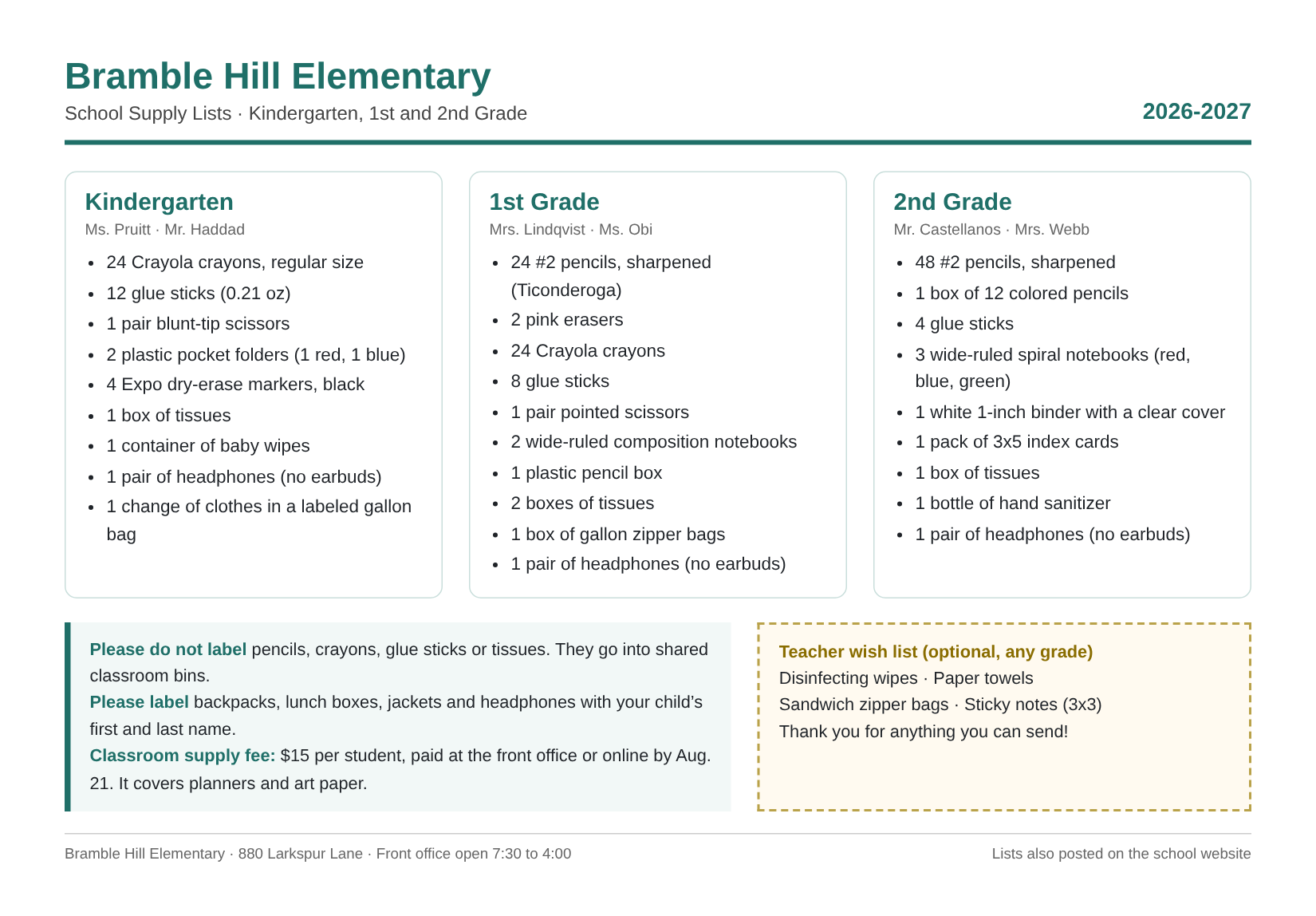
Three grades share the page, and only one of them is yours. The counts are exact on purpose: "48 #2 pencils" goes into a shared bin, so 24 leaves the class short.
Two lines look like items and aren't. The $15 supply fee is paid at the front office, not bought at a store. The teacher wish list is optional, for any grade.
From the supply list to the cart
The supply list is the rare school paper that ends at a store. That changes what matters: the right grade, the right count, and nothing bought twice.
Shop one grade, not the whole sheet
When one sheet holds a list for every grade, the tool is built to keep every list and start each item with its list's name. Uncheck the grades that are not your kid's, and the shopping list is just theirs.
Two kids in two grades? Run the sheet once and keep both grades. Each item still says which grade it is for.
Buy to the count
"Do not label" on a supply list means the supplies are shared. Teachers pool the pencils, glue sticks and tissues, so the count is what the class runs on. The tool keeps every quantity and detail, like "1 box of 12 colored pencils".
Already have scissors from last year? Uncheck them. The list you copy is only what you still need to buy.
Things to buy, and things to do
Each item is marked as something you can buy or something to do. Crayons land under Buy. A supply fee or a form to send back lands under To do, so the store list has nothing on it you can't put in a cart.
One list, one shopper
Copy shareable link sends the same list to the other parent or the grandparent doing the store run. They open it, see your checked items, and copy or download it. The list travels inside the link, so nothing is stored on our side.
About the supply list tool
A supply list is long, exact and printed for every family at once. This tool reads the whole page, then writes each item down once, with its count and brand. You check what to keep, fix any wording, and take the list to the store.
What it reads
- The school's supply list PDF, typed or scanned, up to 10 pages.
- A photo of the printed sheet from the back-to-school packet.
- A sheet with a list for each grade, or for each teacher.
- Teacher wish lists, and camp or after-school supply lists.
What it keeps, and what it leaves out
It keeps each item's quantity and detail. It is built to leave out headings, instructions, names and dates, so a note like "please label backpacks" does not become an item. Read the school's notes yourself before you shop.
Every item, one tap from the store
In the KidsFoldr app, each item you can buy gets a Find button. Tap it, pick Amazon, Walmart or Target, and that item opens in the store's app or in your browser. A supply fee gets no Find button, because it is not for sale.
So the supply list becomes a cart one item at a time, with no typing.
The supply list, a checklist on your phone
Snap the supply list in KidsFoldr, and it is filed under the right kid as a supply list and read as a checklist, with no typing. So the paper can go. Each item sits under the paper with a round check beside it.
One tap sends it to Apple Reminders on iPhone or to Google Tasks on iPhone and Android, as a list named after the paper. Copy List puts it on the clipboard for any other app.
Scan it for peace of mind, then toss it with no guilt.
What happens to your file
Your file goes to our server, which asks Claude, an AI model made by Anthropic, to read it. The list comes back to your browser. We do not save the file or the list.
The only thing we keep is a count of how many papers came from your connection, stored as a scrambled code. That keeps the tool free. The count is deleted after two days.
Questions about this tool
Do I need an account?
No. Choose a photo or PDF of the supply list, check the items, and copy or download the list. There is no signup, no email and no popup.
Our school prints every grade on one sheet. Can I get just my kid's list?
Yes. When a sheet holds more than one list, the tool is built to start each item with its list's name, like "2nd Grade". Uncheck the grades that are not yours, and copy what is left.
Does it keep the counts and brands?
Yes. It keeps each item's quantity and detail, so "48 #2 pencils, sharpened" stays exactly that. You can fix the wording of any item before you copy it.
What happens to the supply fee and the notes about labeling?
A fee is something you pay, not something you buy, so it goes under To do. Instructions such as "please label" are left out of the list, so read the school's notes yourself before you shop.
Can I send the list to the other parent?
Yes. Copy the shareable link. Anyone who opens it sees the same list and can copy or download it. The list travels inside the link itself, so nothing is stored on our side.
Is there a limit?
Three papers an hour and ten a day from one connection. A very long list may be more than it reads at once. That keeps the tool free for everyone.
What does the KidsFoldr app add?
Snap the supply list and it is filed under the right kid and becomes a checklist on your phone, with no typing. Each item you can buy gets a Find button for Amazon, Walmart or Target, and the whole list goes to Reminders or Google Tasks in one tap. Then the paper can go.