Friday's folder is on the counter, and Addy's math worksheet sits on top: graded, a sticker in the corner, her name in pencil. You want to keep it, just not on the counter. So where should it go: KidsFoldr vs Google Drive?
Good news: you don't have to pick one. Google Drive is a fine place for the photo to live. KidsFoldr files it for you, and one tap on Back up copies it to your own Google Drive.
The real question is who does the filing every Friday, and how much of it you want to do yourself.
- Google Drive is a great home for papers, and you can keep it. Its scanner, search, free storage and sharing are the real thing.
- KidsFoldr does the filing for you. Snap the worksheet, and it's filed under the right kid, grade, type and subject with no typing, and the dates on a permission slip land on your calendar.
- Many families use both. If you're looking for a Google Drive alternative for family documents like the weekly school pile, you may not need to replace anything: KidsFoldr's Back up copies every paper into your own Google Drive, a folder for each kid with grade folders inside. And if you file a few papers a month and enjoy making folders, Google Drive alone may be all you need.
Who files the worksheet?
In Google Drive, you do, and that's fine if you like things just so. In KidsFoldr, the app does it the moment you snap the paper.
In Google Drive
Say Addy's math worksheet comes home Friday. You open the Google Drive app and tap Camera (on iPhone, Add, then Scan). Google outlines the page, and you can crop it, clean up smudges and add another page before it saves as a searchable PDF (Google).
Next, you "create your own file name or select a suggested title" (Google). Choosing a folder is an optional step (Google), so where the worksheet belongs, and whether there's an Addy folder with a 3rd grade folder inside, is up to you.
Plenty of parents enjoy that part. If that's you, here's how to set up Google Drive for school papers.
In KidsFoldr
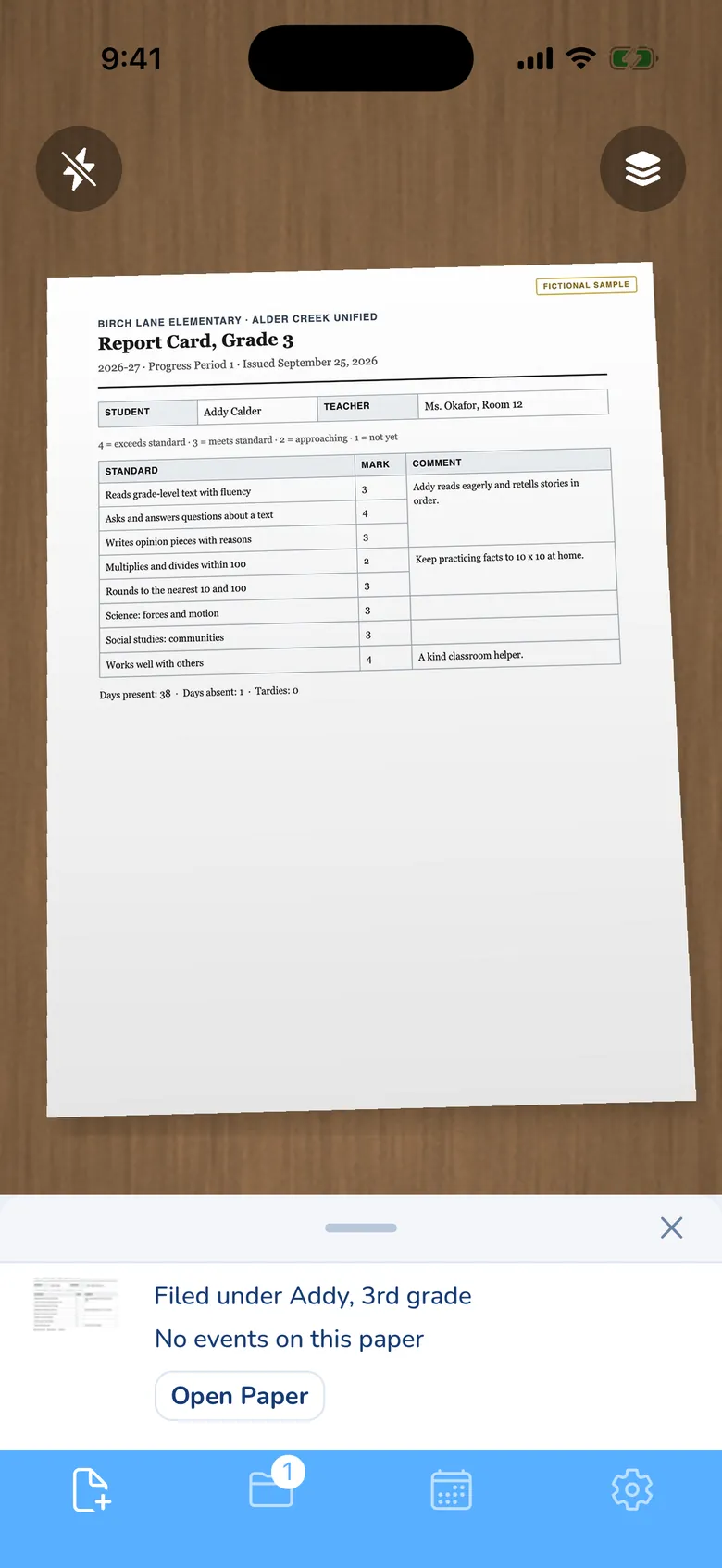
Snap the same worksheet, and it's filed under Addy, 3rd grade, Schoolwork, Math, with no typing and no sorting. The app reads the name she penciled at the top, and straightens the photo if you took it sideways.
A note tells you where it went: "Filed under Addy, 3rd grade." The paper's card shows its Kid, Grade, Subject and Type, and each one is a tap to change.
That's the whole job. Scan it for peace of mind, and the worksheet can go in the recycling with no guilt.

KidsFoldr vs Google Drive, job by job
Both apps scan a paper and find a word on it later. The difference is who decides where the paper goes, and whether its dates reach your calendar.
These are the same checks we use in our roundup of the best apps for filing kids' school papers, with Theo's field trip permission slip added for the calendar row.
Scroll both ways on a phone. The job name stays put.
| Job | Google Drive | KidsFoldr |
|---|---|---|
| Scans the worksheet | Built-in scanner: crop, clean up, add pages, saves a searchable PDF (Google) | Snap it, or bring it in from Photos, Files, the share sheet or a forwarded email |
| Files it by kid | You choose or make the folder (Google) | Filed under the right kid automatically |
| Knows the grade | Your folder, your call | Filed under the kid's grade on the paper's date |
| Knows the subject | You name it or file it | Schoolwork tagged Math, one of fifteen subjects |
| Help tidying later | Gemini's "Suggest file moves" proposes folders and moves nothing until you approve; web, English, Google AI Pro or Ultra (Google) | Nothing to tidy: every paper is filed as it arrives |
| Finds a word on it | Yes: search covers the text inside your files, scans included (Google) | Yes: any word on every paper, or kid, grade, subject, type or date |
| Copy outside the app | Your files already live there | One tap on Back up copies every paper to your own Google Drive, a folder for each kid with grade folders inside |
| The slip's date on the calendar | Ask the Gemini app to add it to Google Calendar, for example by pasting the details (Google) | Every date on the slip goes to the calendar you already use, linked back to the slip |
| Sharing with the other parent | Share a folder as Viewer or Editor; files added later are shared too (Google) | Share any folder, paper or event; up to 6 people on one account |
| Cost | Free with up to 15 GB, shared with Gmail and Google Photos (Google). "Suggest file moves": Google AI Pro, $19.99 a month in the US (Google) | $3 a month. 14-day free trial, no card. |
Where Google Drive shines
Google Drive is good at the things you want from a home for files. It's free, and it does these well:
- A good scanner. It finds the page edges, cleans up "stains, fingers, and more," handles more than one page and saves a searchable PDF (Google).
- Search inside your files. Google Drive search covers the text inside your files, scans included (Google).
- Free storage. Every Google account comes with up to 15 GB, shared with Gmail and Google Photos (Google).
- Easy sharing. Share a folder with the other parent or a grandparent as a Viewer or Editor, and everything inside it is shared too. Files in a shared folder count against your storage, not theirs (Google).
- A route to the calendar. Connect Google Workspace to the Gemini app, then paste the slip's details and say "Add this to my calendar" (Google).
Where KidsFoldr shines
KidsFoldr makes the Friday pile file itself. Snap each paper, and it's sorted by kid, grade and type (and subject for schoolwork) with no typing: more order than a binder, and nobody sorting.
Addy's worksheet lands in her folder and Theo's spelling test in his, each under its grade. Open the Papers tab, and there they are, one folder per kid.
Then there's Theo's field trip permission slip. Snap it, and its dates land on the calendar your family already uses, Google Calendar included. Each event links back to the slip in its notes, one tap away.
The keepers stay, too. The worksheet she's proud of and the drawing tucked behind it are kept for good as scans, safe and easy to share. Turn on automatic backup, and every paper goes to KidsFoldr Cloud as it is filed.
Two years from now, when you want that worksheet, type any word on it, or search by kid, grade or subject. And when you want your own copy, one tap on Back up copies every paper into your Google Drive.
That's how to go paperless at home with kids: scan it for peace of mind, then let the paper go. Years of schoolwork fit on your phone, which is why a phone beats the bin for the worksheet pile.
Which fits your family?
If you scan a few papers a month and like building your own folders, Google Drive alone will serve you well. If you've got two kids, a stack every Friday and slips with dates on them, add KidsFoldr and keep Google Drive for the copy.
Stick with Google Drive if
- You enjoy naming and filing, and the pile is small.
- You don't mind asking Gemini to add the odd date to your calendar.
- You already have folders you like.
One tip if you go this way: make a folder for each kid, with a folder for this grade inside, before the first Friday pile. It's much easier to keep up than to catch up.
Once a paper is scanned, our guide to what to do with your kids' school papers helps you decide what's worth keeping.
Add KidsFoldr if
- Keeping up is the hard part: two kids, three activities, a new flyer every day.
- You want every paper handled as it arrives, so nothing slips.
- You want the dates on the calendar without typing them.
If you're after the best app to save kids' schoolwork without sorting a thing, this is the family it was built for.
How we compared
We ran hands-on tests and checked each app's documented features. Every Google Drive fact comes from Google's own help pages, listed in Sources, and the date we checked them is at the top of the page.
Questions parents ask
Is there a Google Drive alternative for family documents like school papers?
Yes, and it doesn't have to replace Google Drive. KidsFoldr is built for the papers kids bring home: it files every paper by kid, grade and type, with no sorting. One tap on Back up then copies every paper into your own Google Drive.
Can I scan documents to Google Drive automatically?
On Android, Google Drive offers a scan widget for your Home screen: you choose a folder once, and the widget saves your scans there (Google). In KidsFoldr, the filing itself is the automatic part. Snap the paper, and it's filed by kid, grade and type.
What does the KidsFoldr copy look like in Google Drive?
You get a KidsFoldr folder with a folder for each kid and grade folders inside. Each paper's pages are saved as images named after the paper. If you get a new phone, Restore brings your papers back.
Can Gemini organize my school papers in Google Drive?
It can suggest a tidy-up. Gemini's "Suggest file moves" looks at loose files and proposes folders for them, and it moves nothing until you approve (Google). It works on Google Drive on the web, in English, and Google lists it for Google AI Pro and Ultra (Google). You can steer it with a prompt like "Group these by year" (Google).
Sources
All checked October 14, 2026.
- Google Drive Help, "Scan documents with Google Drive" (Android)
- Google Drive Help, "Scan documents with Google Drive" (iPhone & iPad)
- Google Drive Help, "Search for files in Google Drive" (Android)
- Google Drive Help, "Search for files in Google Drive" (iPhone & iPad)
- Google Drive Help, "Search for files in Google Drive" (Computer)
- Google One Help, "How your Google storage works"
- Google One, plans
- Google Drive Help, "Let Gemini organize your files"
- Google Workspace Updates, "Organize My Files in Drive now generally available"
- Google, Google AI plans and prices (US)
- Gemini Apps Help, "Create & manage your calendar events with Gemini Apps"
- Google Drive Help, "Share and manage access to files and folders in Google Drive"