Google Drive for school papers works well, starting with the report card that came home Friday. It scans the paper, finds it later by the words inside, and shares it with the other parent (Google).
The payoff comes later. In two years you may need last year's reading assessment for an IEP meeting, or a new school may ask for the 2nd-grade report card.
Good filing gets you from Friday's paper to that one, fast. Here is what Google Drive does well, how to get the most from it, and what KidsFoldr adds.
- Google Drive already handles scanned school papers well: a scanner that saves searchable PDFs, search that reads words in photos and PDFs, up to 15 GB free, and easy sharing (Google).
- The one job it hands to you is the filing: each paper's kid, grade and type, and putting it there every time. The seven tips below make that job easy.
- Or let KidsFoldr do the filing. Snap any paper, and it is filed by kid, grade and type with no typing, and one tap copies every paper to your own Google Drive, in a folder for each kid with grade folders inside.
What Google Drive does well
Google Drive handles scanned school papers well. Its app has a scanner that saves searchable PDFs, and its search finds words inside your files (Google).
The scanner is built into the Google Drive app on Android and iPhone. It crops the page, cleans off stains and finger marks, and adds more pages to one scan, so a two-page report card stays one file.
Search reads more than file names. Google's Android and iPhone help pages say its search covers words featured in pictures and PDF files. A photo of a spelling test counts too.
Every Google account comes with up to 15 GB free, shared with Gmail and Google Photos (Google). A folder can be shared with the other parent by email, as a Viewer or an Editor. And the files sit in your own Google account.
Google Drive can now suggest folders, with Gemini
Since June 1, 2026, Google AI Pro and Ultra subscribers can click "Suggest file moves" in Google Drive on the web, and Gemini proposes folders for loose files. It moves nothing until you review the list and approve it (Google).
Gemini looks at what is in the files and at how you already organize. You can steer it with a prompt; Google's own example is "Group these by year." You check the files, click Move files, and can undo the move.
It runs on drive.google.com, in English. For personal accounts it needs Google AI Pro or Ultra. The free account and Google AI Plus are not on Google's list.
It is a real help with a pile of loose scans. You bring the kid and the grade: Google does not say Gemini knows which kid a paper belongs to or what grade that kid was in.
Who does each filing job
A digital filing system for household paperwork has four jobs: a rule for where each paper goes, putting every paper there, finding it later, and keeping a copy off the phone. Google Drive does the last two well (Google).
The first two are the filing. You choose who does them: you, in Google Drive, or KidsFoldr, for you.
Walk Friday's report card through all four.
The rule. Addy's folder, 3rd grade, report card. In Google Drive, you set the rule once, with folders and a naming habit. KidsFoldr sorts on its own, using each kid's grade from your family profile.
Putting every paper there. By hand, you name each scan and pick its folder. With KidsFoldr, you just snap it: every paper files itself.
Finding it later. Google Drive search does this well. Type a word from the report card, and it looks inside the scan. KidsFoldr finds every paper by any word on it, too.
A copy off the phone. Google Drive is that copy: the scan lives in your Google account. With KidsFoldr, the paper can go: turn on automatic backup, and every paper goes to KidsFoldr Cloud as it is filed. Back up adds a copy in your own Google Drive.
These are the same four checks we used in our roundup of apps for filing kids' school papers. Here is who does each job.

| Check | In Google Drive | With KidsFoldr |
|---|---|---|
| Files by kid | You: pick the kid's folder on each scan. On Google AI Pro or Ultra, Gemini can suggest folders on the web for you to approve. | KidsFoldr: every paper, as you snap it. |
| Knows the grade | You: put it in the folder or the name. | KidsFoldr: automatically, from the kid's grade on the paper's date. |
| Finds a word | Google Drive search: searchable PDFs, and words in pictures. | KidsFoldr search: any word on every paper. |
| Copy outside the app | Google Drive is the copy: the files are in your account. | You tap Back up: every paper is copied to your own Google Drive or iCloud, a folder for each kid with grade folders inside. |
| What automatic filing costs | Gemini's suggestions need Google AI Pro, $19.99 a month, or Ultra, from $99.99 a month. | $3 a month. 14-day free trial, no card. |
We ran hands-on tests and checked each app's documented features.
The two work together. KidsFoldr takes the two filing jobs, and Google Drive keeps doing what it does well.
How to get the most from Google Drive: seven tips
If you file by hand in Google Drive, build the folders and the naming rule once. Then every scan has a place to land, and one night a week keeps it current. Grade folders also hold a year of work in one place, the way families gather work samples for a homeschool portfolio in New York.
-
1
Make a folder for each kid.
Make one top folder for school papers, with a folder for each kid inside. In each kid's folder, make one folder per school year that names the grade, such as "2026-27, 3rd grade." Addy's and Theo's report cards then never share a folder.
-
2
Name every scan by one rule.
Put the kid, grade, type and date in every name: "Addy, 3rd, report card, 2026-11." Search reads the name, and so do your eyes. Two years from now, before the IEP meeting, "Addy reading assessment" finds last year's.
-
3
Pick the folder on every scan.
Tap Location before you save. Google Drive leaves it optional (Google), so make it a habit. When a new school asks for the 2nd-grade report card, it is waiting in the 2nd-grade folder.
-
4
Keep one night a week.
On Friday night, empty the backpack, then scan and name each paper. A standing night keeps the routine going well past October.
-
5
Share each kid's folder with the other parent.
Share it by email as an Editor, so the graded math unit test lands in the same place, whoever scans it. Sharing covers every subfolder and every file added later, and papers the other parent adds count against their own storage (Google).
-
6
Let Gemini tidy loose scans, if you have it.
On Google AI Pro or Ultra, run "Suggest file moves" on drive.google.com. Check each suggestion against your kid and grade folders before you click Move files.
-
7
Scan it, then let it go.
Once the report card is scanned, named and in its grade folder, the paper can leave the counter. Artwork goes the same way: the scan is the copy you keep. For which papers to keep and which can go once scanned, see what to do with your kids' school papers.
What KidsFoldr adds: the filing done for you, with a copy in your own Google Drive
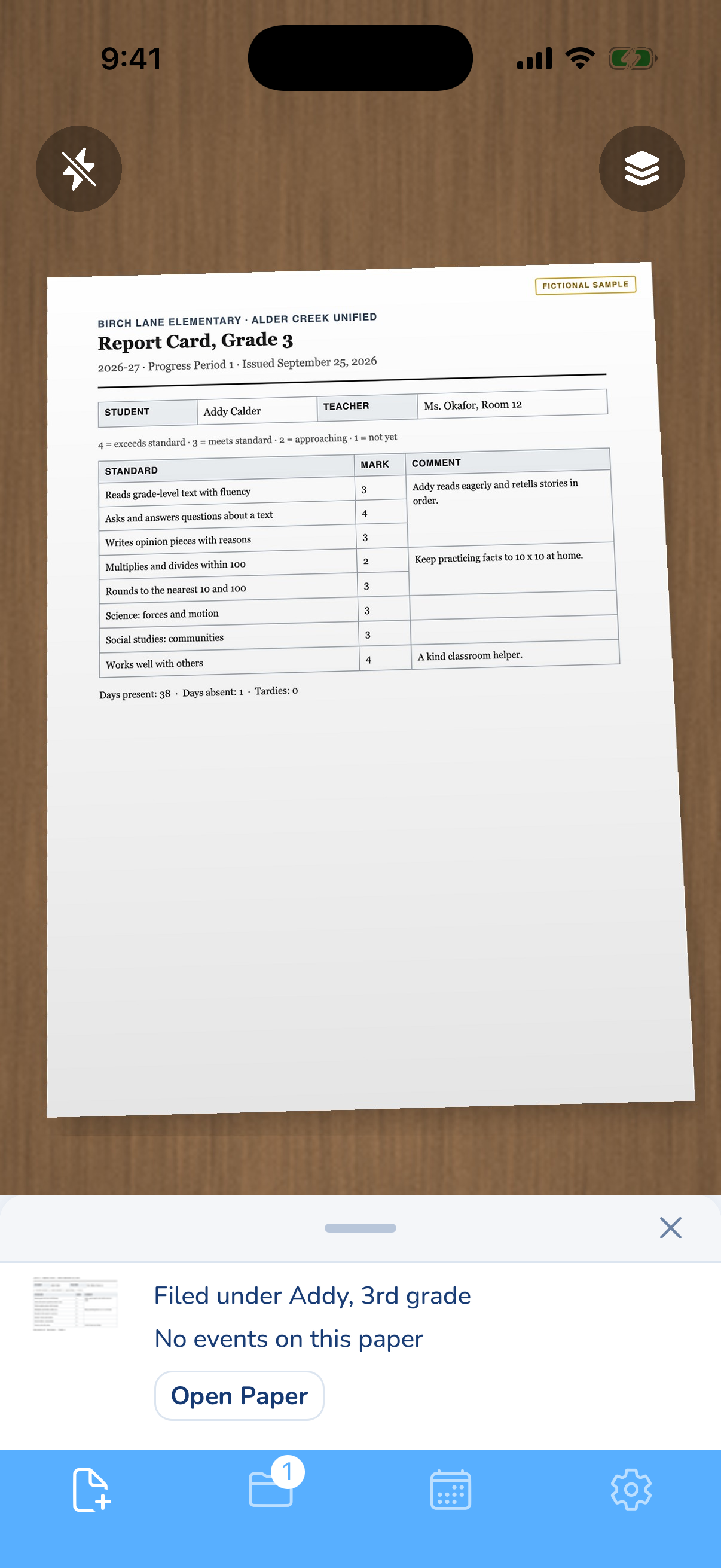
KidsFoldr makes Google Drive better by doing the filing for you. Snap Friday's report card, and it is filed under Addy, 3rd grade, with no typing and no sorting. Every paper lands by kid, grade and type, and schoolwork and report cards by subject too, with zero effort.
The report card is kept for good as a scan, safe in KidsFoldr Cloud with automatic backup on. In two years, you find it by any word on it: search reads every paper, even with no signal.
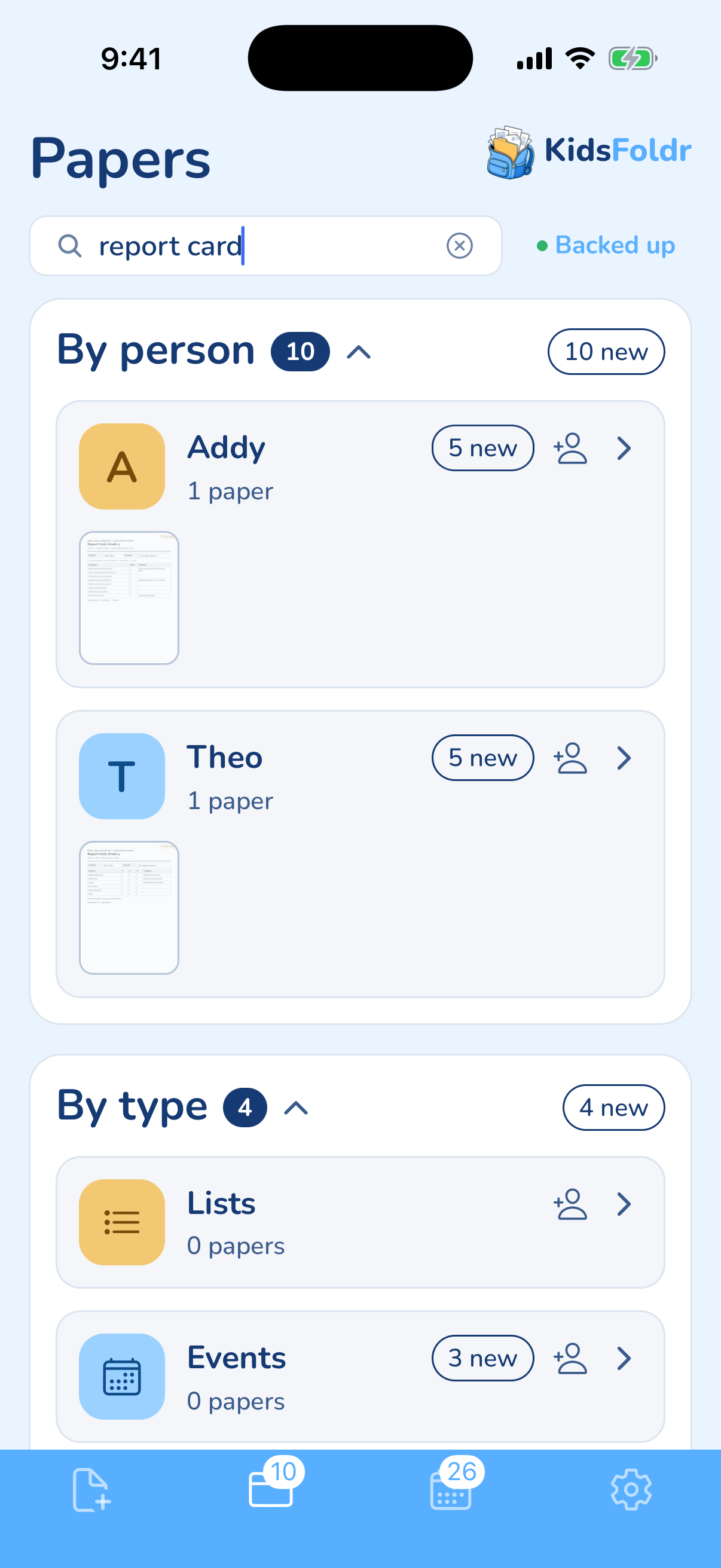
Google Drive stays. One tap (Back up) copies every paper to your own Google Drive or iCloud, a folder for each kid with grade folders inside. Then the report card can go and the counter stays clear, with no guesswork and no guilt.
Sharing: both do it well
Google Drive and KidsFoldr share equally well, at the folder or the file level. In either one, share a kid’s whole folder or a single paper with the other parent or a grandparent (Google).
In both, anything added to a shared folder later is shared too. Nobody has to send it again. A bin or a binder can’t share at all: the other parent sees a paper only when someone hands it over.
KidsFoldr also shares events. Send the conference or the field trip to someone’s calendar as a link they add with one tap, with the paper attached if you choose.
Common questions
Can I scan documents to Google Drive automatically?
Yes. The Google Drive app scans a paper and saves it to your account, and you can pick a folder on each scan (Google). On Android, a scan widget can be tied to one folder, so every scan from it lands there.
How do I organize family documents digitally?
Give each kid a folder, give each school year a folder that names the grade, name every scan by one rule, and scan on the same night every week. The seven Google Drive tips above walk through it.
Can Google Drive organize my files for me?
It can help. With Google AI Pro or Ultra, Gemini's "Suggest file moves" in Google Drive on the web proposes folders for loose files and moves them after you approve (Google). Google does not say it knows a kid or a grade, so those come from you.
Is KidsFoldr a Google Drive alternative for family documents?
No, it works with Google Drive and makes it better. KidsFoldr organizes every paper with no effort, and Back up puts a copy of each in your own Google Drive, a folder for each kid with grade folders inside.
Does Google Drive search find words in a photo of a paper?
Yes. Google's Android and iPhone help pages say Google Drive search covers words featured in pictures and PDF files (Google).